After unboxing, charge the tablet, install the DP5 application from Google Play, log in with the credentials supplied with your kit, then pair the ELP5 PRO-VCI via Bluetooth. Full walk-through is in the DP5 Quick Start Guide and Software Manual linked above.
The control number is available inside the DP5 App from version 2.0.3 onwards. Open the app, go to the registration / activation screen, and the control number will be displayed there — you'll need it when activating your licence.
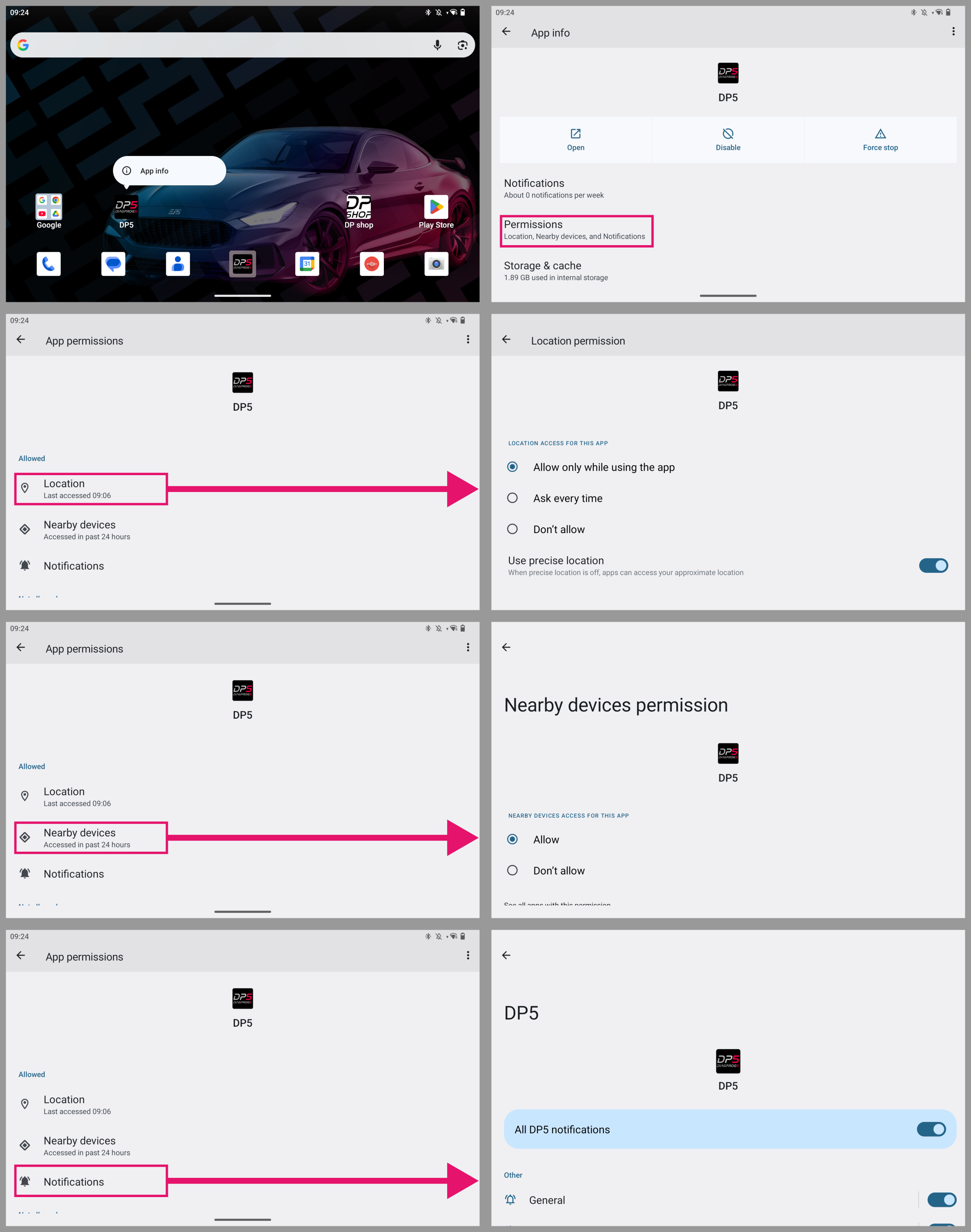
The DP5 application requires access to the device's storage and location. On the tablet open Settings → Apps → DP5 → Permissions and enable Storage and Location. Without these the app cannot save data files or pair correctly.
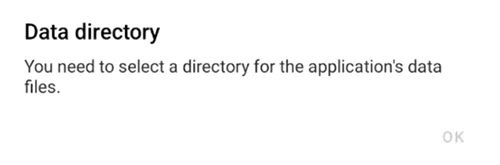
On first launch you must select a directory for the application's data files. We recommend creating a folder called DP5 in the tablet's internal storage and selecting it when prompted.
1) Power on the ELP5 PRO-VCI. 2) From the Bluetooth settings on the tablet, select your VCI. 3) In the DiagProg5 app tap [VCI MANAGER]. 4) Tap [CONNECT DEFAULT VCI] to pair with your ELP5 PRO-VCI. A successful pairing is shown by a flashing LED on the VCI and the serial number appearing in the app.
If the VCI won't connect over Bluetooth, turn off Wi-Fi on the tablet and restart the DP5 application. This resolves most pairing issues caused by radio interference.
Existing DP4 owners can transfer their licence to DP5. Follow the official LICENSE TRANSFER MANUAL on diagprog4.com, or contact us in the UK and we'll guide you through the process.
02
Working with DiagProg5
Open the Google Play Store app, tap your profile icon (top right), tap Manage apps & devices, select DP5 and tap [Update]. Vehicle coverage and feature updates are delivered through the in-app Update Manager.
Activation and software updates are managed through the Customer Zone on diagprog5.com. Log in with the credentials supplied with your kit, download the latest package, then run [UPDATE MANAGER] from the DP5 main screen.
1) Tap the [SOS] icon on the top bar of the DP5 app. 2) Accept the Consent for Active Technical Support. 3) Fill out the Support Request form with all relevant details. 4) Press [SEND]. UK customers can also contact us directly via our Contact page.
For emergencies, support can be delivered via TeamViewer. Install TeamViewer QuickSupport and the TeamViewer Universal Add-On from the Play Store, open QuickSupport → Settings → Permissions → Remote control → enable Universal Add-On. Share "Your ID" with your representative and accept their entry request. Keep Wi-Fi stable and the VCI powered on for the session.
Select the required software from the DP5 menu, then on the bottom right tap [DESCRIPTION]. If [DESCRIPTION] isn't available, run [DOWNLOAD] from [UPDATE MANAGER] on the main screen to fetch the missing documentation.
Open Settings on the tablet → System → Reset options → Erase all data (factory reset) → confirm with [ERASE ALL DATA]. This wipes the device and restores the original state — back up your DP5 data folder first.
03
UK Sales & Support
Yes — DP5 UK provides UK-based phone, email and contact-form support for all DiagProg5 customers. We also help bridge any escalations to ElproSys when required.
Yes. Visit our DP5 Demo page to explore the interface and key features, or get in touch via the Contact page to arrange a private demo with our UK team.
Pace Tuning is our upcoming dealer programme for professional vehicle remapping and tuning services across the UK. Register your interest on the Contact page and we'll be in touch as the programme opens.
Contact us through the Contact page expressing your interest in becoming a DiagProg5 or Pace Tuning dealer. We'll provide full details on dealer packages, pricing and territory availability.
DiagProg5 ships with the manufacturer warranty from ElproSys. UK-based support is provided by our team, and software updates are delivered based on your subscription package.
Still need help?
Our UK team is here to support you with setup, updates and diagnostics.